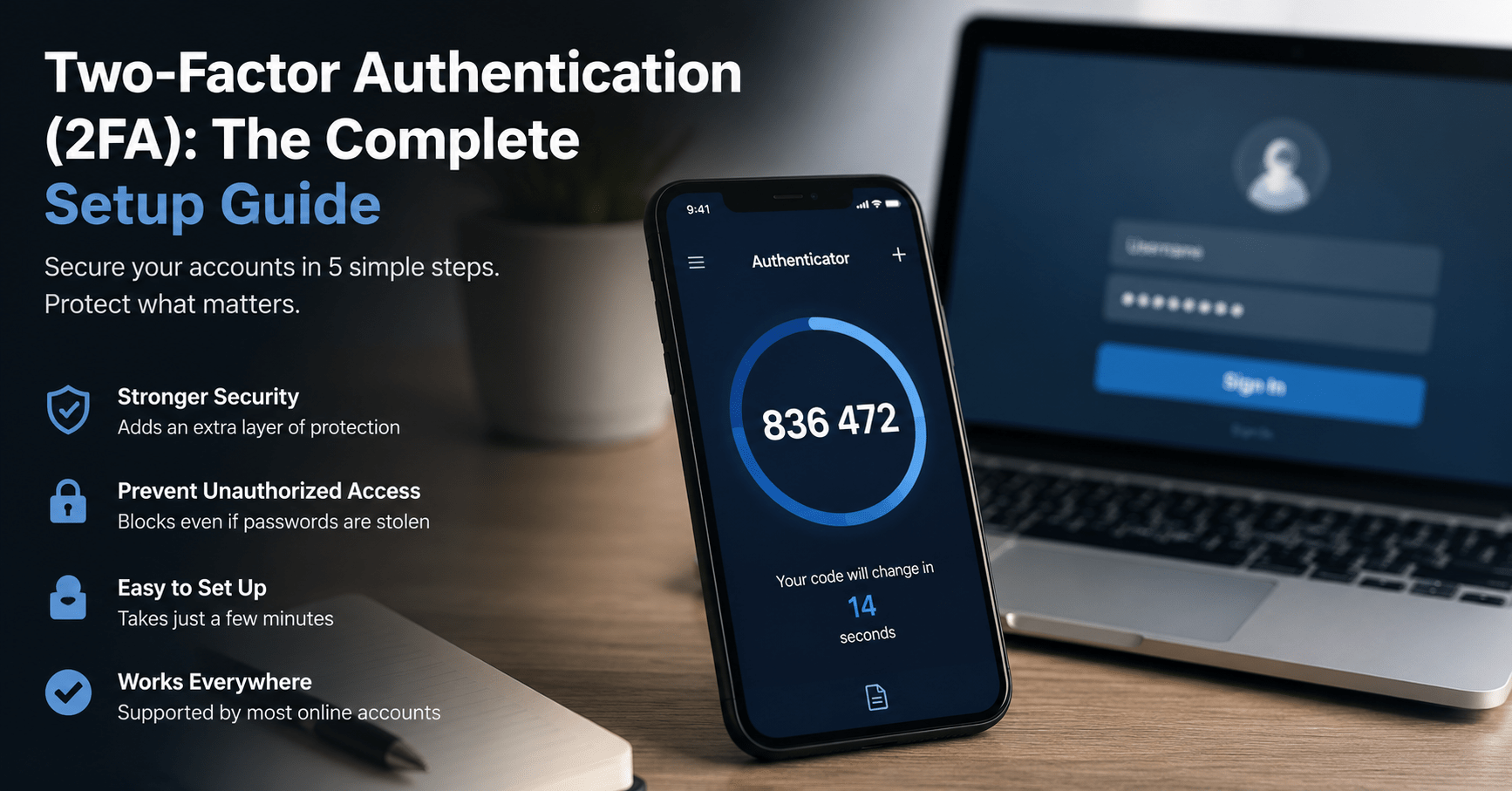

Passwords simply aren’t good enough anymore. Breaches give away billions of credentials per year, and after one of your credentials ends up in a breach, any attacker could try out that credential on your email, bank, or GitHub account. Understanding how to set up two factor authentication correctly is the most important security improvement you can implement in less than ten minutes.
The issue here is that most people don’t set up the process correctly. They choose the SMS verification because it seems like a safer choice, don’t use the backup codes since the screen where you’re prompted to set up 2FA looks like an afterthought, and get locked out as soon as they try using a different phone number.
What Two Factor Authentication Actually Does
The two factor authentication gives you a second layer of proving your identity by providing the password along with a piece of hardware or a code sent via an application. Even in case the hackers manage to steal your password via phishing or breach, they would still encounter a roadblock while trying to log in.
As CISA says, multi-factor authentication reduces the chance of compromising your account to about 99%. This, however, is true only if you use the second factor in a proper way, and this is the point at which all the guides become useless and vague.
The Four Methods, Ranked From Weakest to Strongest
Not all 2FA is created equal. Here’s how the common methods stack up.
| Method | How It Works | Strength | Best For |
|---|---|---|---|
| SMS codes | Text message with a one-time code | Weak — vulnerable to SIM-swapping | Better than nothing, not your only option |
| Authenticator apps | App generates a rotating 30-second code (TOTP) | Strong | Most everyday accounts |
| Push notifications | App sends an approve/deny prompt | Strong | Work accounts, Google/Microsoft logins |
| Hardware security keys | Physical USB or NFC key you tap or plug in | Strongest | Email, banking, and any account you can’t afford to lose |
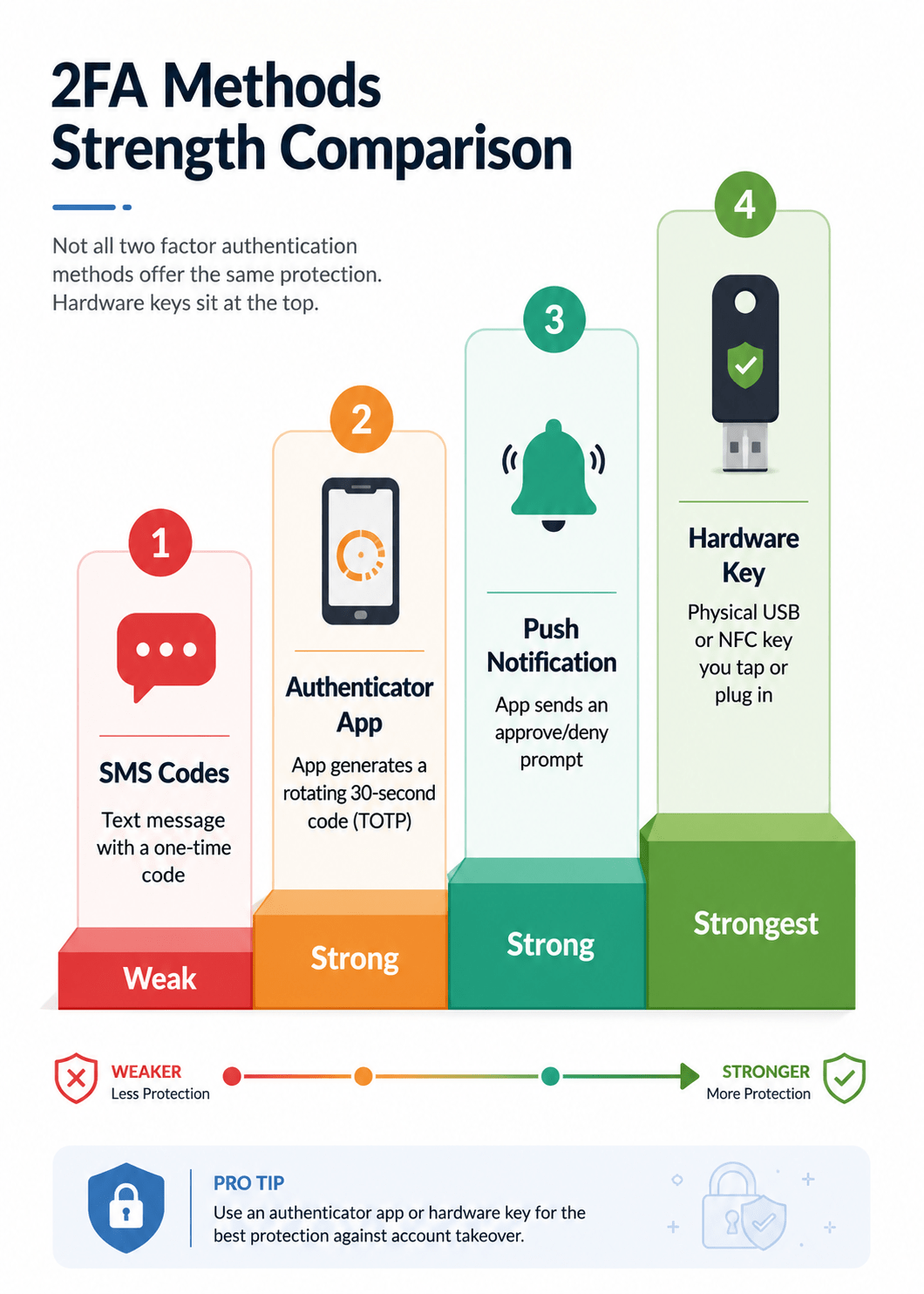
SMS is better than nothing, but an attacker can intercept SMS by tricking your mobile carrier into transferring your phone number to a different SIM card. If your financial institution or email provider supports only SMS, then go for that. But if there is a choice, skip to the app-based option.
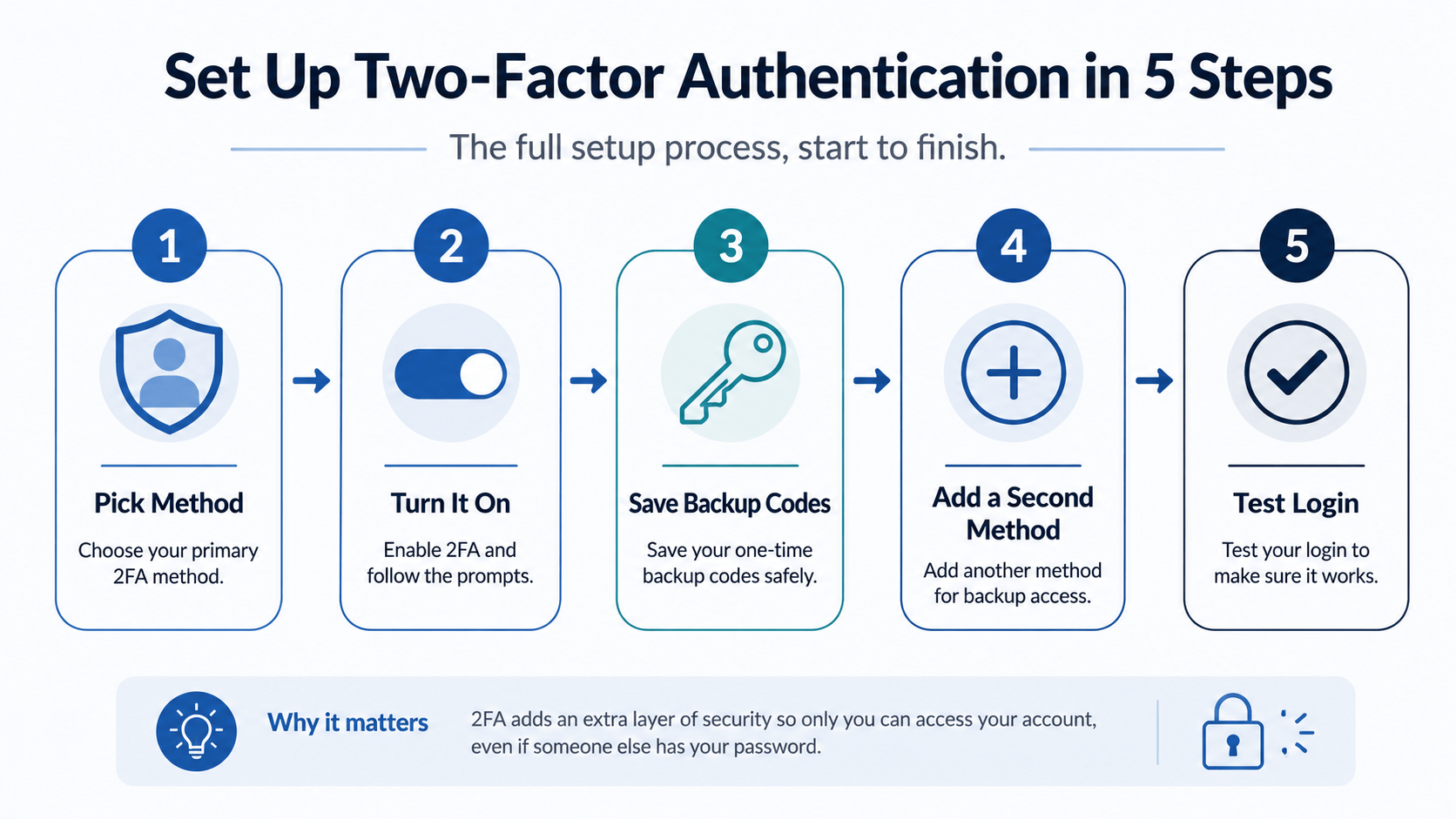
Step 1: Pick Your Primary Method
For most individuals, an authenticator app should be the way to go. Applications such as Google Authenticator, Microsoft Authenticator, and Authy produce a six-digit code which refreshes every thirty seconds, and these apps can operate even without a signal or internet connection after installation.
Keep the hardware key as a last resort for accounts that you would be affected by a security breach, including your primary email, your bank, and any other account used for resetting the passwords on all the others. Your email account would always be the most important one.
Step 2: Turn It On in Account Settings
The exact screen differs by platform, but the process is nearly identical everywhere.
- Open the account’s security or privacy settings.
- Look for “Two-Factor Authentication,” “2-Step Verification,” or “Multi-Factor Authentication.”
- Choose your method (authenticator app is usually listed as “Authentication app” or “TOTP”).
- Scan the QR code shown on screen using your authenticator app.
- Enter the six-digit code the app generates to confirm the setup worked.
If you’re setting this up for a WordPress site with multiple admin users, plugins like Wordfence or miniOrange 2FA handle this at the login screen level, and you can enforce it for every account with publishing access.
Step 3: Save Your Backup Codes Before You Do Anything Else
It is also this step that people almost always skip and the step which leads to lockouts. After enabling 2FA, you will see a list of one-time use backup codes. They are provided for one purpose and one only – they allow you to log in even if you lost your device or the app does not synchronize.
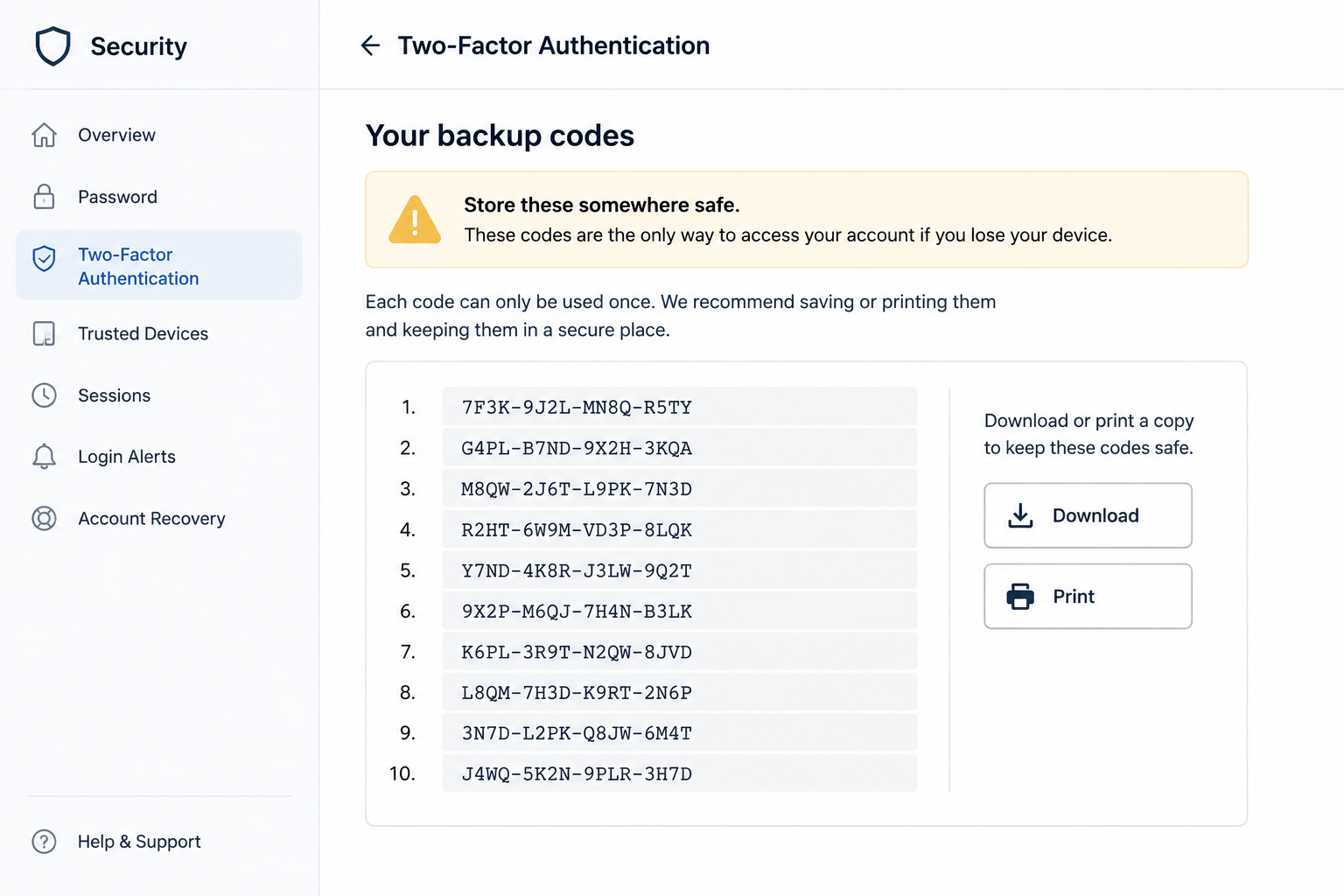
Don’t take screenshots and put them aside. Store the codes somewhere where you can actually find them when needed – it could be a password manager’s secure notes section or simply print them out and store them in a safe place.
Step 4: Add a Second Registered Method Where Possible
In some cases, it is possible to have more than one 2FA technique registered at once, like using an authenticator application along with a hardware token or having an authenticator app configured on two different devices. This way, even when one mechanism cannot be used, there will still be another one available. One of such applications is Authy, which allows syncing codes between devices.
Step 5: Test It Before You Log Out
Log out and log back in once, right after setup, to confirm the second factor actually works. It’s a thirty-second check that saves you from discovering a broken setup at the worst possible moment.
Common Mistakes That Cause Lockouts
- Skipping backup codes. This alone accounts for most 2FA-related lockouts.
- Using SMS as your only method when an authenticator app was available.
- Setting up 2FA right before switching phones, then losing access to the old device’s app before transferring it.
- Approving push notifications you didn’t request. This is a technique called MFA bombing or MFA fatigue, where an attacker who already has your password sends repeated approval prompts hoping you’ll tap “approve” by reflex. Never approve a prompt you didn’t trigger. Deny it and change your password immediately.
- Never approving a call for the code out loud. No real bank, government service, or delivery company will ever ask you to read a verification code over the phone. If someone asks, hang up.
Authenticator App vs SMS 2FA: Which Should You Actually Use
In case your account provides you with an option, the authenticator app will always work better than SMS authentication in almost all cases. Codes sent via SMS pass through the phone network and may be intercepted through the process called SIM swapping when attackers convince your cellular service provider to swap your number onto their device.
SMS authentication retains only one advantage in this situation – it does not require any configuration apart from your phone number. Thus, it will work well for low-risk accounts but never use it for financial, personal identification or email accounts.
Frequently Asked Questions
Is two factor authentication really necessary for personal accounts?
Yes. Password breaches happen constantly, and reused passwords mean one leaked login can expose several accounts. 2FA blocks that even when a password is compromised.
What happens if I lose my phone with the authenticator app installed?
Login using the backup codes you had saved earlier during the setup process and register a new device. However, in the absence of backup codes, you will have to use the account recovery process of that platform.
Can I use the same authenticator app for multiple accounts?
Yes. One authenticator app can generate codes for dozens of accounts at once. Each account gets its own entry inside the app after you scan its QR code.
Is SMS 2FA better than no 2FA at all?
Indeed, significantly. Although it is the worst of all commonly used means, it does prevent the vast majority of attacks aimed solely at password guessing. Use it if there is no alternative, and then upgrade.
Do I need a hardware security key?
Not for every account. Reserve it for your primary email, banking, and anything sensitive. An authenticator app is sufficient for most other logins.
Will 2FA slow down how I log in every day?
Marginally. Push-based and app-based methods usually add a few seconds. Most browsers and apps also let you mark a device as trusted so you’re not prompted every single time.
What is MFA bombing?
It is when the attacker already having your password makes multiple attempts to get your 2FA approval, hoping that eventually you will approve it accidentally or just to stop all those notifications.
Can I turn off SMS 2FA once I switch to an authenticator app?
On most platforms, yes, though it’s worth keeping SMS as a secondary fallback in case your phone with the authenticator app is unavailable.
Conclusion
Two-factor authentication setup takes only ten minutes, but neglecting to do the backup codes part is how those ten minutes turn into a nightmare for you. Choose an authenticator app for all your other accounts and use a hardware key for your email and bank accounts. Make sure to save your recovery codes the minute you get them. Begin with your email account right now since it will be the way to recover from most things you own.