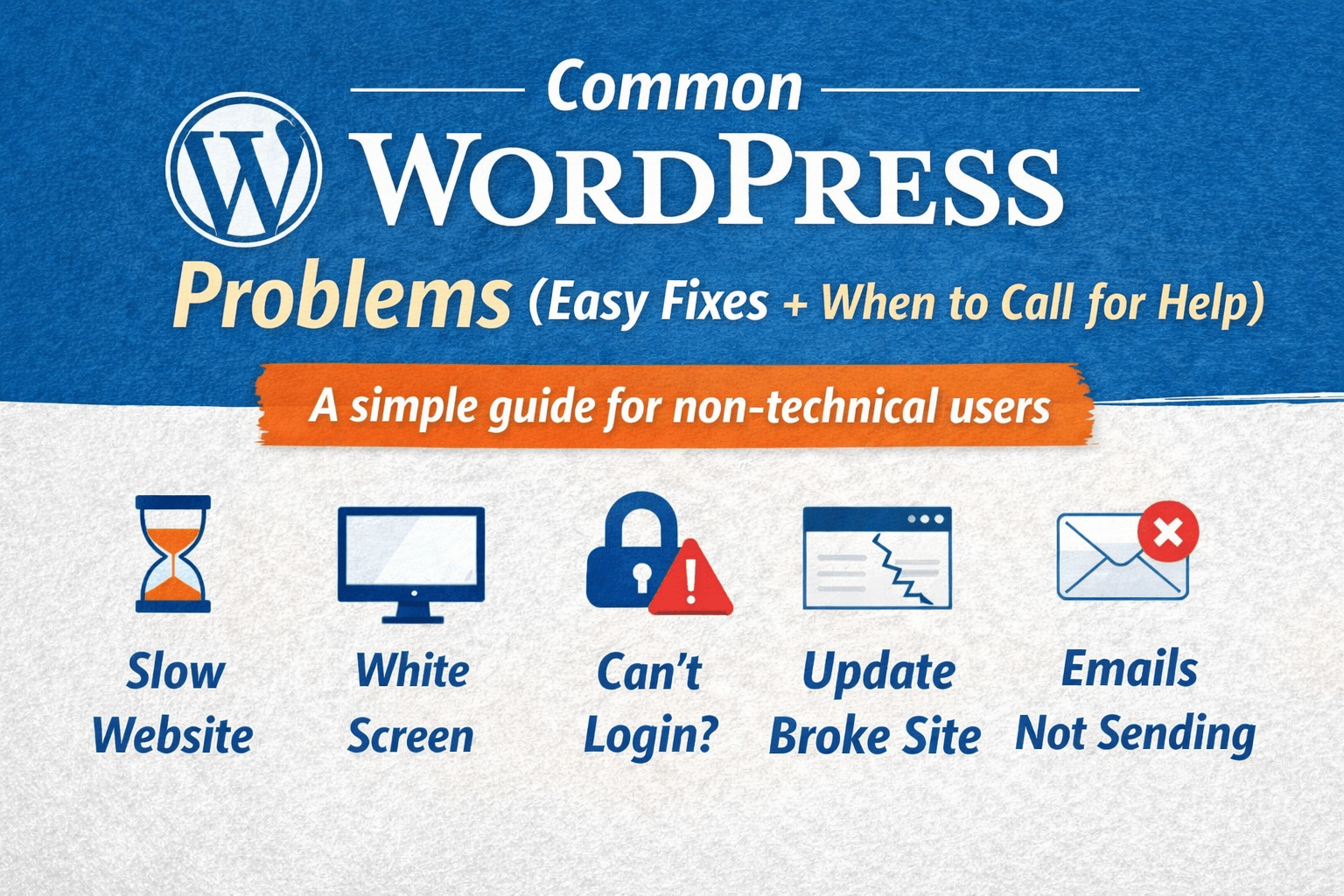

WordPress is beginner-friendly, but not beginner-proof. It can be easy to install and configure but can become complex and crazy with multiple plugins and addons
If you use WordPress for:
- Blogging
- Small business websites
- Portfolio or personal sites
you will eventually face issues like slowing down site, not images loading, missing styles or functionality and errors from your analytics/adscript.
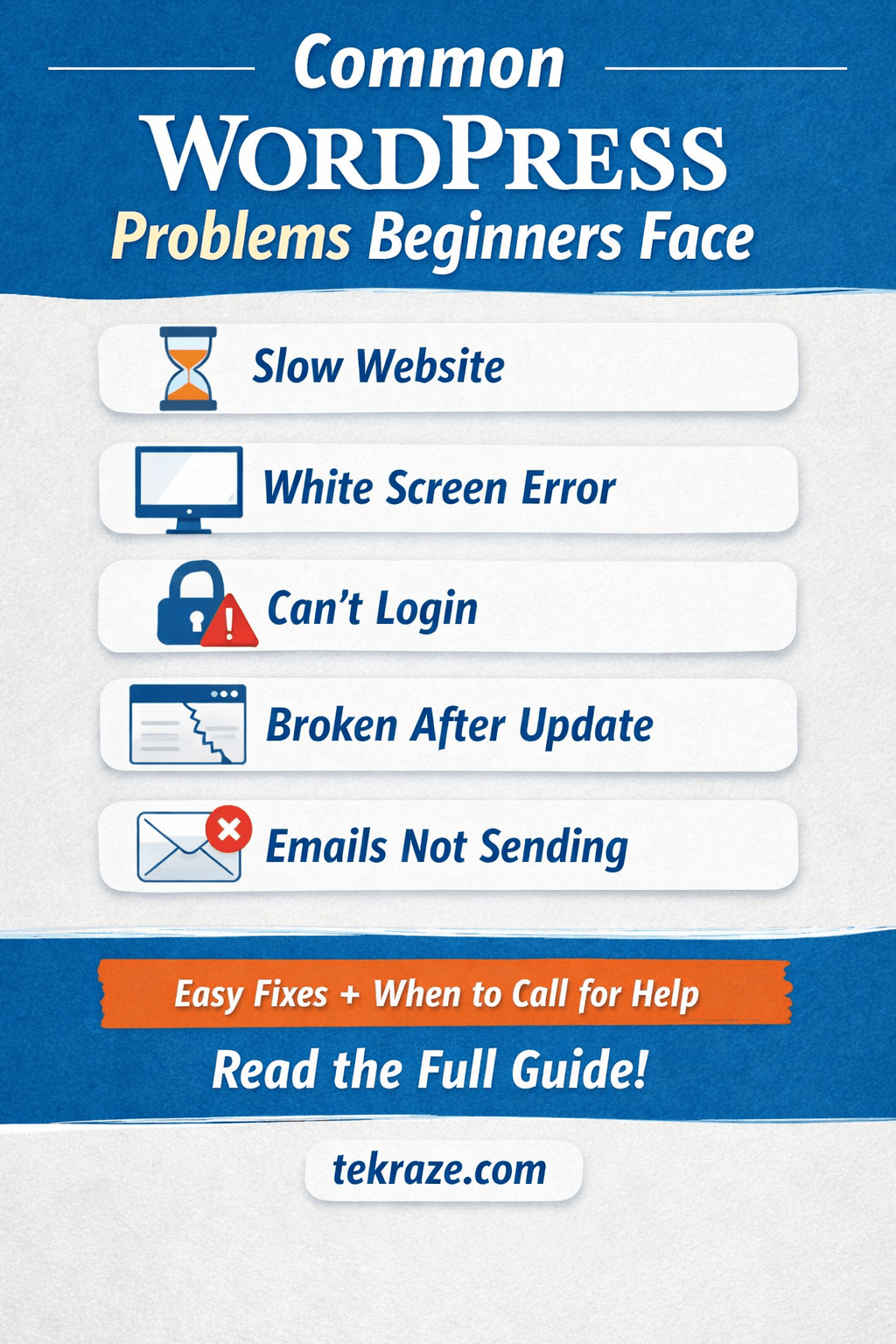
So, we have created this guide that covers 12 common WordPress problems, explained in easy way that a non-tech person can easily understand. If you are not a techie or programmer, still we have listed safe fixes you can try yourself without breaking anything.
Dont worry when things get risky, we clearly tell you at end of each tip we shared, so you dont miss anything. Lets go
1️⃣ Website is Slow
What you notice
- Pages load slowly and take time to load
- Visitors are leaving your site quickly (increasing bounce rate)
Easy things to try
- Use only one caching plugin (multiple plugins can conflict with CSS/JS loading)
- Compress images before uploading using tools like ToWebp, FreeConvert and TinyPng
- Delete unused plugins that you don’t need anymore, as they still take storage and increase memory load
🚧 Bonus (Tech Zone)
If speed doesn’t improve after doing these changes, the issue may be your hosting, database, or theme code. So, try different Themes first, plugins and then later hosting. Don’t blindly install random plugins as installing unknown plugin usually make it worse. (Even if plugin mentions make your website fast, speed or any similar message)
2️⃣ White Screen of Death (Blank Page)
What you see
- Completely white screen with no text, or maybe single warning line. Or in some cases 503 error in the page.
- And when you don’t even see any error on the page.
Safe steps
- Clear browser cache of your browser, if works fine, if not then check and clear cache of your blog
- Disable last installed plugin before which site was working fine. Just access file manager and go to wp-content > plugins > new-plugin and rename the plugin folder to something else. This disables the plugin safely, and you can reenable later.
- Switch to default theme temporarily provided by WordPress based on year numbers like 2024, or 2025, and now 2026
🚧 Bonus (Tech Zone)
Most of the time, caused by PHP or memory issues. In that case increasing PHP Memory limit or WordPress memory limit helps. Go check wp-admin > site health tool to know if you have limited memory.
If you don’t know what those are, stop here and go check with some expert, to avoid further breakdown.
3️⃣ Website Broke After Update
Symptoms
- Design looks broken after Theme Update, or helper plugin update
- Buttons missing or design changes
Beginner fixes
- Clear cache to load new theme files and design, graphic assets.
- Update all plugins together, sometimes old plugin version misses the required changes.
- Check theme compatibility using theme docs or description in dashboard settings.
🚧 Bonus (Tech Zone)
Updates should be tested on staging. (This is what tech people do, not all users have staging, so ignore if you don’t know it)
Live-site experiments = risk. What you can do is install a maintenance plugin, that installs maintenance page to let users know, some work is going on. This allows users to know site is unavailable for valid reasons, so they can come back later.
4️⃣ Can’t Login to WordPress Admin
What happens
- When you try to login, your Password gets rejected
- Login page keeps refreshing
Easy checks
- Reset password via email or cPanel, if you cant access, then check with DB directly or WP-Command line tool (Only experts)
- Clear cookies in your browser
- Disable security plugin like Wordfence if you have installed any, that might be blocking you out. Try incognito tab as well.
🚧 Bonus (Tech Zone)
Database or security rules may be involved.
This is a high-risk DIY area so don’t try yourself, take help of an expert
5️⃣ Contact Form Not Sending Emails
Common issue
- Form submits but no emails received. Can be due to missing PHP Email sender or missing sender email
Try this
- Check spam folder if email works, as new blog emails can be easily marked as spam
- Test with different email address if you can get
- Install SMTP plugin like WPMailSMTP to configure service for sending email using Gmail, Outlook service providers as default Mail by WordPress doesn’t work.
🚧 Bonus (Tech Zone)
Often requires server + DNS setup. You need to set Email related configuration DNS and CNames, to prevent spoofing and authority.
This issue silently loses leads, so try to fix it as soon as possible. This issue also stops emails like Signup and login emails.
6️⃣ Plugins Causing Errors or Conflicts
What you notice
- Site breaks after installing plugin, due to incompatible plugins with another plugin or wordpress version
- Features stop working, as sometimes plugins are removed from repo, or stops working due to non maintenance of server side functions.
Simple fix
- Disable the plugin if you know, or one by one, until you find which plugin caused the issue
- Use fewer plugins to avoid the issue at start.
🚧 Bonus (Tech Zone)
Some plugins conflict at code level.
Only dev testing can confirm this safely.
7️⃣ Images Not Uploading Properly
Symptoms
- Upload fails, can be due to image size, wrong formats, extensions. Make sure you have configured acceptable image types.
- Images appear broken, can be impartial or corrupt images, or non supported images.
Beginner steps
- Reduce image size by using above mentioned tools or installing wordpress plugins.
- Rename file (no spaces/symbols). Make sure PNG/JPEG/WEBP images as these are popular.
🚧 Bonus (Tech Zone)
Server permissions or storage limits may be the cause. Can be storage full as well.
8️⃣ Website Shows “Not Secure” (HTTPS Issue)
What you see
- Browser shows warning, a red padlock icon that shows insecure site using http, or even if https, no SSL certificate or expired one
- Padlock missing, missing SSL config and certs
Easy fix
- Install SSL certificate using certbot or buy paid ssl certificate directly from hosting provider
- Use HTTPS redirect plugin, also solves mixed content issue
🚧 Bonus (Tech Zone)
Incorrect SSL setup can break site URLs. Loss of trust between customers.
Need to be handled carefully, especially for sites selling something and accepting payments.
9️⃣ Theme Customization Not Working
Problem
- Changes don’t apply after saving or dont show up
- Layout behaves strangely
What you can try
- Clear cache from the cache plugin and your browser
- Use theme’s built-in customizer to check live changes. even if changes not appear, try incognito to confirm
🚧 Bonus (Tech Zone)
Some themes need custom CSS or child themes. Do it carefully
🔟 Website Keeps Going Down
Signs
- Site unavailable randomly, load sometimes and sometimes keep loading, or shows error page.
- Hosting errors, downtime, shared server load, low storage, multiple DB queries
Beginner checks
- Contact hosting support
- Check storage limits
🚧 Bonus (Tech Zone)
Could be traffic spikes, server overload, or security blocks.
1️⃣1️⃣ Too Many Spam Comments or Forms
What happens
- Spam everywhere like Crypto messages, forums, CBD, or any other promotion.
- Fake messages on contact forms or emails
Easy protection
- Enable anti-spam plugins like honeypot, akismet, captcha
- Add CAPTCHA protections to prevent bot
- Use CDN like Cloudflare with built in bots protection
🚧 Bonus (Tech Zone)
Advanced spam needs server-side protection.
1️⃣2️⃣ Afraid to Update Anything
Common fear
- “Last time I updated, everything broke”
Safe habit
- Backup before updating using Backup Plugins like Updraft, WPBackup and more.
- Update monthly, not randomly. Keep a specific time and announce before, so users can be aware.
🚧 Bonus (Tech Zone)
Developers use backups + staging to update safely.
13️⃣ 404 Error on Pages or Posts
What you see
- Page shows “404 Not Found” or content not found
- Old links suddenly stop working and redirects to wrong page
Easy things you can try
- Go to Settings → Permalinks
- Click Save Changes (no changes needed)
- Clear website cache
🚧 Bonus (Tech Zone)
If this keeps happening, it may involve:
- Server rewrite rules (Nginx level rewrites, require careful changes)
.htaccessfile issues (Make a backup before changing anything)
👉 This is usually a quick fix for a WordPress developer but risky to edit blindly.
14️⃣ Error Establishing a Database Connection
What you see
- Entire site stops loading
- Message mentions “database connectivity” issue
What you can safely check
- Is your hosting active?
- Has storage limit been reached?
- Check hosting status page
🚧 Bonus (Tech Zone)
This error usually involves:
- Database credentials
- Corrupted database
- Server outage
👉 Do not change files unless you know what you’re doing. This can make recovery harder.
15️⃣ Internal Server Error (500 Error)
What happens
- Website suddenly crashes
- No clear explanation shown
Beginner-friendly steps
- Clear cache
- Disable last plugin
- Check with hosting support
🚧 Bonus (Tech Zone)
Common causes include:
- Plugin conflicts
- Memory limits reached or very low memory limits, 256-512 MB is recommended for most sites.
- Server misconfiguration like Nginx, SSL, or DB creds.
👉 This is a strong signal to stop DIY and get help.
16️⃣ Changes Not Showing on Website
What you notice
- You update content but old version appears
- Design changes don’t reflect on website
Easy fixes
- Clear browser cache
- Clear WordPress cache plugin
- Check mobile vs desktop view
🚧 Bonus (Tech Zone)
Advanced caching or CDN issues may be involved.
17️⃣ Website Redirecting to Wrong Page
What happens
- Site opens a different page
- Admin panel redirects unexpectedly
Simple checks
- Disable redirect plugins
- Check site URL in Settings → General
🚧 Bonus (Tech Zone)
This can involve:
- Malware (Can be a hack , please add security plugin like wordfence or consult some agency providing cleanup services)
- Incorrect database values
👉 This one should not be ignored.
When Should You Stop DIY?
You should consider help if:
- Your site earns money and you can spare some money for maintenance
- Errors keep returning it means, need some dedicated person to handle those issues
- You feel nervous touching settings, thats a sign you need some guidance or help
Sometimes:
1 hour of a WordPress expert > days of guessing
Keeping Your WordPress Content Clean & Readable
Fixing errors is important, but content clarity matters too.
Poor formatting, large blocks of text, and messy layouts can:
- Increase bounce rate
- Make your site feel “broken” even when it isn’t
👉 We recommend reading this guide on improving content presentation:
Beautify Your WordPress Blog ContentFrequently Asked Questions
Why does WordPress break after updates?
Updates can conflict with themes or plugins that are outdated or poorly coded.Is it safe to fix WordPress issues myself?
Basic issues are safe to try. Anything involving database, files, or server settings should be handled carefully.How often should I maintain my WordPress site?
Monthly updates, backups, and checks are recommended for most sites.
Need Help With WordPress Issues?
If you want:
- Quick WordPress fixes
- Plugin & theme conflict resolution
- Speed, login, or email fixes
👉 Check our WordPress support service here
We fix issues safely and explain them clearly.