
AI coding assistant will completely transform your process of software development. I bet you know how it feels to sit and look into a file which is supposed to be filled with code, while the deadline is approaching fast. Or perhaps you are refactoring some parts of your project and you have changes spread across five or six files without any signs of stopping.
And this is where the assistant steps in.
Over the past several months, I have been trying out different AI coding assistants such as GitHub Copilot, Cursor, and Codeium, developing React applications, debugging Python scripts and analyzing old Java code. They are far from being flawless. However, they work better in different scenarios and picking the wrong one may turn out to be worse than having none at all.
Let’s take a closer look at their performance in practice.
Also Read — What Are Tokens in Large Language Models? Simple Explanation with Examples
What Are AI Coding Assistants?
AI coding assistants are applications that utilize large language models to help you write code, answer questions about your application, explain errors, and edit your code throughout several files. You can consider them advanced auto-complete systems capable of reading your codebase and responding to your requests using plain English.
They do not substitute for your role. Instead, they take care of the routine actions and leave you to tackle those parts of the work that require your personal attention. However, like any other application, AI coding assistants can misinterpret the task or introduce new bugs into your code.
By 2026, such applications have developed significantly. Context windows became longer, agents became capable of executing complex commands, and most assistants allow you to choose the underlying AI system. The only question that remains is which one will work best with you and within your budget.
Quick Comparison Table
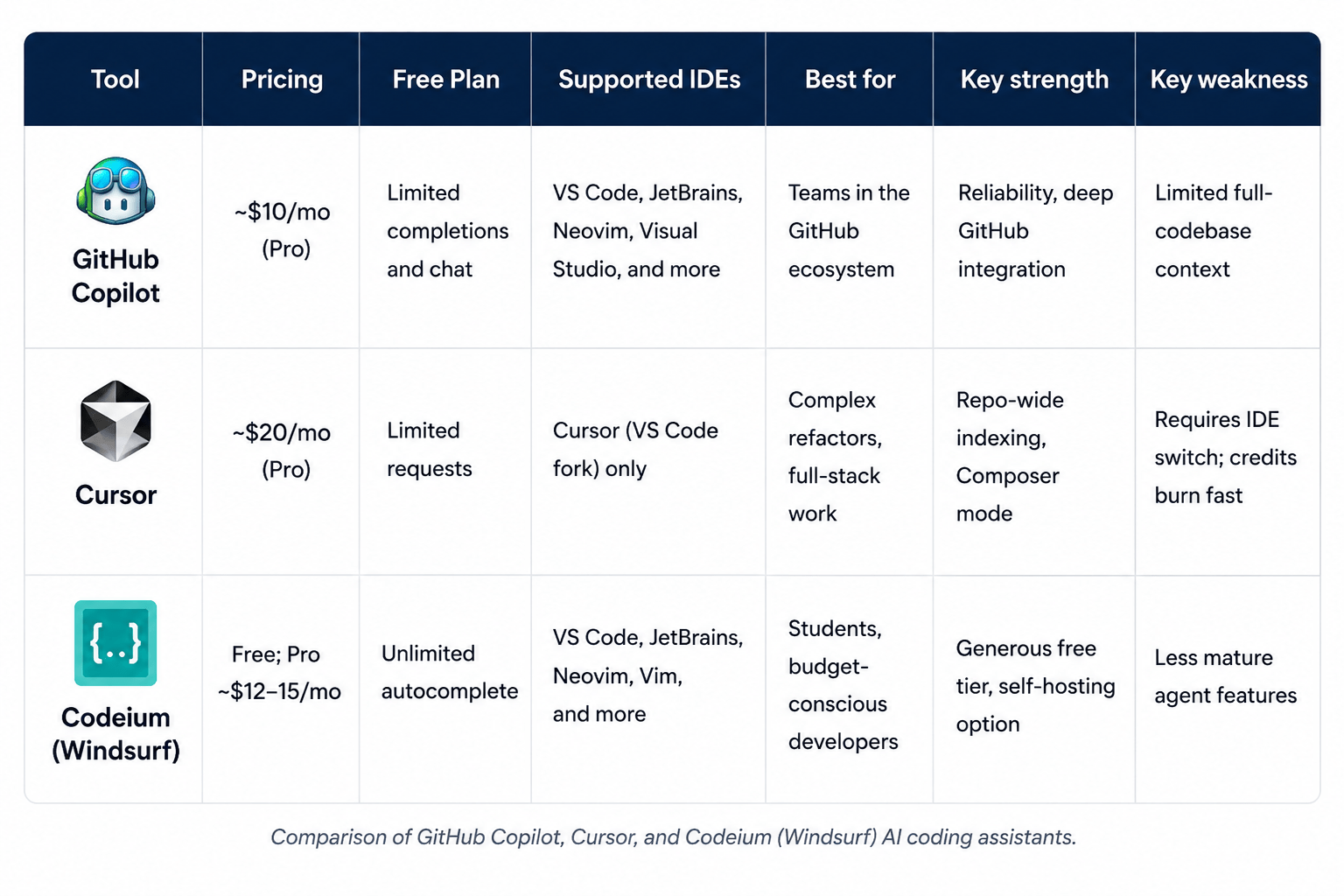
Note: Pricing and plan limits change often. Always check the official site before you subscribe.
GitHub Copilot Review
GitHub Copilot started the AI pair programmer category and it still feels like the most production-ready option for most developers.
What It Does
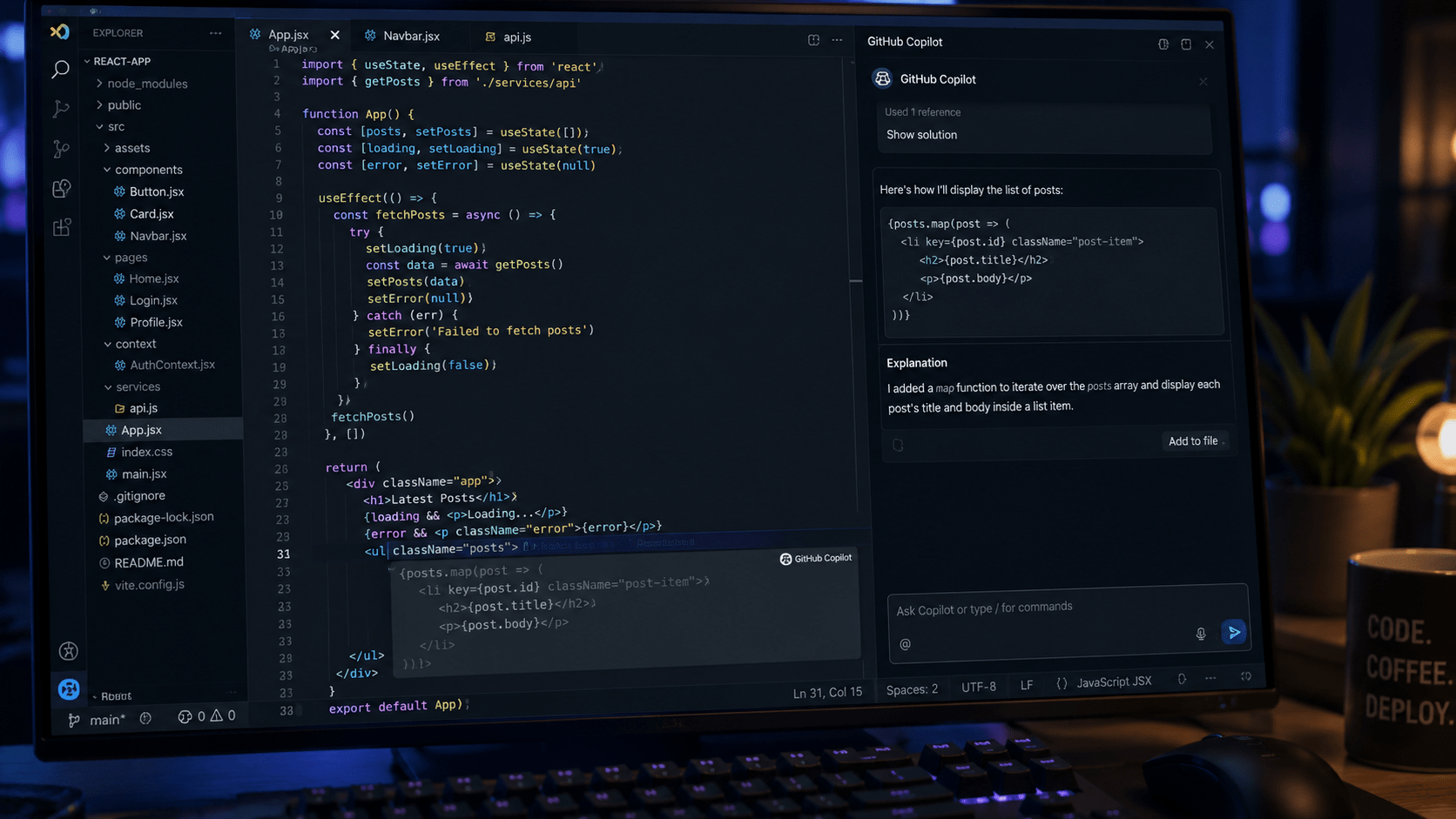
Copilot sits inside your editor and gives you inline suggestions as you type, a chat sidebar for questions and explanations, and agent features for things like code reviews and pull request summaries. It supports multiple underlying models including options from OpenAI, Anthropic, and Google, so you are not locked into one AI backend.
Pros
- Suggestion acceptance rates in real use tend to land around 30 to 35 percent, which is genuinely useful
- Deep GitHub integration lets it pull context from your issues, PRs, and repository history
- Enterprise controls include IP indemnity, audit logs, and content filtering
- Works across VS Code, JetBrains, Neovim, and Visual Studio without forcing an IDE switch
Cons
- Codebase awareness is mostly limited to open files unless you activate the advanced agent features
- Usage-based billing after included credits can catch heavy users off guard
- Chat feels less smooth than Cursor for large multi-file refactors
Pricing
Pro plan is around $10 per month with included usage credits. Business tier is $19 per user per month. A basic free tier is available if you want to try it first.
Real-world Experience
On a recent MERN stack project, Copilot handled API endpoints and React hooks quickly and accurately. When I moved to a larger refactor across multiple services though, I still had to walk it through file by file. It is great at accelerating familiar, well-defined tasks. It struggles when the problem needs an understanding of your entire project at once.
Also Read — How Token Limits and Context Windows Actually Work in 2026
Cursor Review
Cursor is a VS Code fork that has been rebuilt from the ground up with AI at the center. For developers doing complex work on large codebases, it is the most capable option available right now.
What It Does
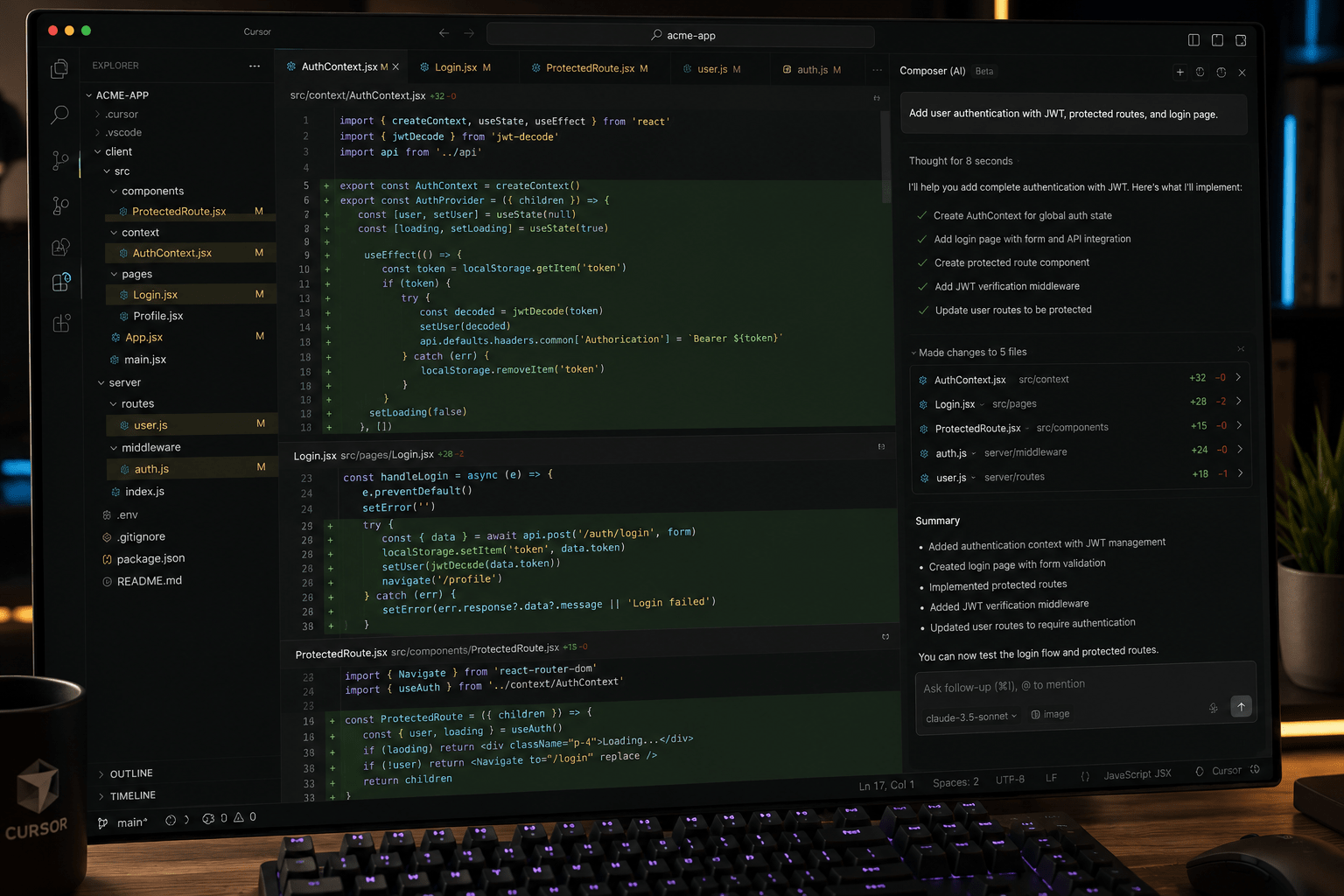
Cursor indexes your entire repository so the AI understands your project structure, not just the files you have open. Composer mode lets you describe a feature you want to build and Cursor handles the changes across multiple files. Inline editing and tab predictions go well beyond what standard autocomplete can do.
Pros
- Repo-wide indexing gives it context that Copilot and Codeium simply cannot match in standard mode
- Composer mode handles multi-file changes. You describe the feature, it drafts the implementation
- Inline editing feels fast and fluid once you get used to the workflow
Cons
- You have to use the Cursor editor itself, which is a VS Code fork. Some extensions behave differently and leaving your current setup has a real switching cost
- The Pro plan is $20 per month and heavy agent use burns through credits faster than you expect
- The extension ecosystem is smaller than standard VS Code
Pricing
Free tier is available for trying it out. Pro is $20 per month. Higher tiers exist for heavier usage.
Real-World Experience
I used Cursor to add authentication across a full-stack app. It suggested backend changes, frontend updates, and test cases all in one session. The output was not production-ready without review, but it saved at least two or three hours of scaffolding work. That kind of help is hard to get from any other tool right now. Just make sure you read every diff before accepting.
Codeium (Windsurf) Review
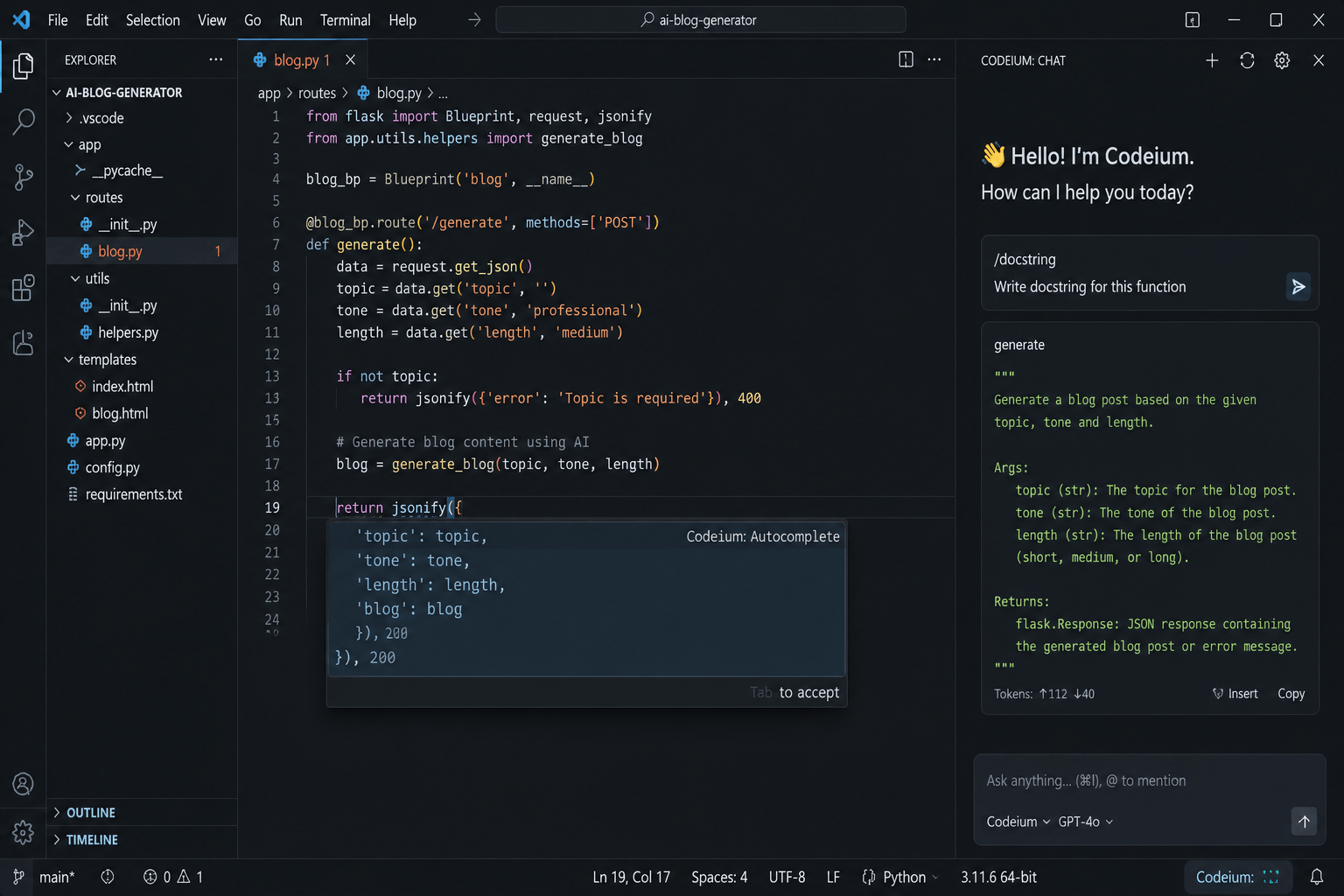
Codeium, now also known for its Windsurf editor, takes a different approach. It focuses on accessibility, broad IDE support, and a free tier that is actually useful rather than artificially limited.
What It Does
Codeium offers unlimited autocomplete on its free plan across a wide range of editors including VS Code, JetBrains, Neovim, and Vim. For teams with data privacy concerns, it also offers self-hosted deployment.
Pros
- Unlimited autocomplete on the free plan with no daily caps and no credit counters to watch
- Supports more editors than either Copilot or Cursor, including niche setups
- Self-hosted option for teams handling sensitive code
- Lightweight and fast; it does not noticeably slow your editor down
Cons
- Codebase understanding lags behind Cursor on large projects
- Agent and multi-file features are less mature compared to Cursor’s Composer
- Suggestion quality on complex or unusual logic can trail the other two
Pricing
Free for individuals with no autocomplete restrictions. Pro and Enterprise plans are available for advanced features and team management.
Real-World Experience
In Python and JavaScript projects, Codeium handled routine tasks cleanly. Filling in boilerplate, suggesting function completions, catching obvious issues. Where it started to fall short was on problems that needed an understanding of how different parts of a larger codebase connect. For everyday work on smaller or mid-size projects, the free tier alone makes it worth installing.
Feature-byFeature Breakdown
| Feature | GitHub Copilot | Cursor | Codeium |
|---|---|---|---|
| Autocomplete quality | Excellent | Excellent | Very good |
| Chat interface | Reliable sidebar | Best-in-class inline | Functional, basic |
| Codebase context | Open files (agents expand this) | Full repo indexing | Open files primarily |
| Multi-file / agent mode | Available (improving) | Strongest option | Less mature |
| Speed | Fast | Fast (agents heavier) | Fastest on autocomplete |
| IDE flexibility | High (many IDEs) | Low (Cursor only) | Highest (most IDEs) |
| Privacy / self-host | Enterprise options | Cloud-focused | Self-host available |
| Free tier | Limited | Limited | Most generous |
| Model selection | Multiple (OpenAI, Anthropic, Google) | Multiple | Improving |
| Enterprise features | Strongest | Growing | Growing |
Which AI Coding Assistant Should You Choose?
The right answer depends on where you are in your career and what kind of projects you work on. Here is a straightforward breakdown.
If you are a student or learner: Start by exploring the free version offered by Codeium. It offers unlimited autocompletion services and hence can be utilized throughout your project without reaching any pay wall in between. Just ensure that you are aware of what the program is doing.
If you are a beginner developer: Whether it is Copilot or Codeium, both can be effective. Both will enable you to learn how the syntax and patterns work. The critical thing here is understanding the reasoning behind every suggestion you receive from the software.
If you are a professional developer: Copilot is the safe, reliable choice for most day-to-day work. If you regularly tackle complex refactors across large codebases, try Cursor, but budget for the IDE transition.
If you are a freelancer: Codeium free or Copilot Pro covers most client work without adding significant cost. Keep your tools lean until a specific project demands more.
If you contribute to open source: Codeium or Copilot free tier. Wide IDE compatibility matters when you are jumping between repositories in different setups.
If you are managing a development team: Copilot Business offers the integration with GitHub, management, and compliance options that the other tools can’t compete with in terms of teams. Plus, you can use Cursor for individual superusers who handle complicated features.
Try the free tiers before committing to anything. Your actual experience will depend on your stack, your project size, and how you work. No benchmark can fully capture that.
Also Read — What Tech Stack Should You Target for a Job Search?
Frequently Asked Questions
Can AI coding assistants replace a human developer?
No. They make mundane tasks easier and allow you to experiment quicker. But architectural decisions, debugging production-level problems, and comprehending business needs require your judgment. Being too dependent on such applications at an early stage of your career may also restrict your learning experience.
Which has the best free plan in 2026?
Codeium wins clearly. Unlimited autocomplete with no daily cap is more useful than the restricted free tiers from Copilot and Cursor.
Do I need to switch IDEs to use Cursor?
Yes. Cursor is its own editor, a VS Code fork. If you are not willing to leave your current setup, Copilot or Codeium are the practical alternatives.
How private is my code when using these tools?
Policy varies with each tool. Codeium provides self-hosting capabilities that are ideal for sensitive environments. Copilot provides enterprise features such as content filtering and auditing. Cursor is a cloud-only application but it has better policy. Always refer to the privacy documentation before incorporating these tools into any client project.
Are they good for JavaScript, React, and TypeScript?
All three handle these well. Cursor tends to have an edge on full-stack TypeScript or React projects where cross-file coordination matters.
How do they perform on large codebases?
Cursor seems to have the upper hand here because of its indexing capabilities across the repository. Copilot is catching up with the help of its agent modes. Codeium does an excellent job when working on small-to-medium-sized projects.
Do they support Python, Java, and other languages?
Yes, broad language support across all three. Quality varies by language, so test on your primary stack before committing to a paid plan.
Final Verdict
There is no one-size-fits-all AI Coding Assistant for everyone.
GitHub Copilot is the best all-round solution. It works for most developers, in most IDEs, and seamlessly integrates into existing workflow.
Cursor is the most advanced solution if you can afford changing IDE and learning a new workflow. In case of complex and context-heavy projects, it beats other solutions hands down.
Codeium is the wisest way to start if you have budget restrictions. Free plan is actually useful and has the largest selection of supported editor environments compared to other alternatives.
Start with the free plans. Test real productivity boost and not demo one. The solution that will help you deliver quality code faster and in control of what goes into production is the solution to choose.
All three solutions constantly evolve in terms of pricing and functionality. Make sure you check current data on official websites.