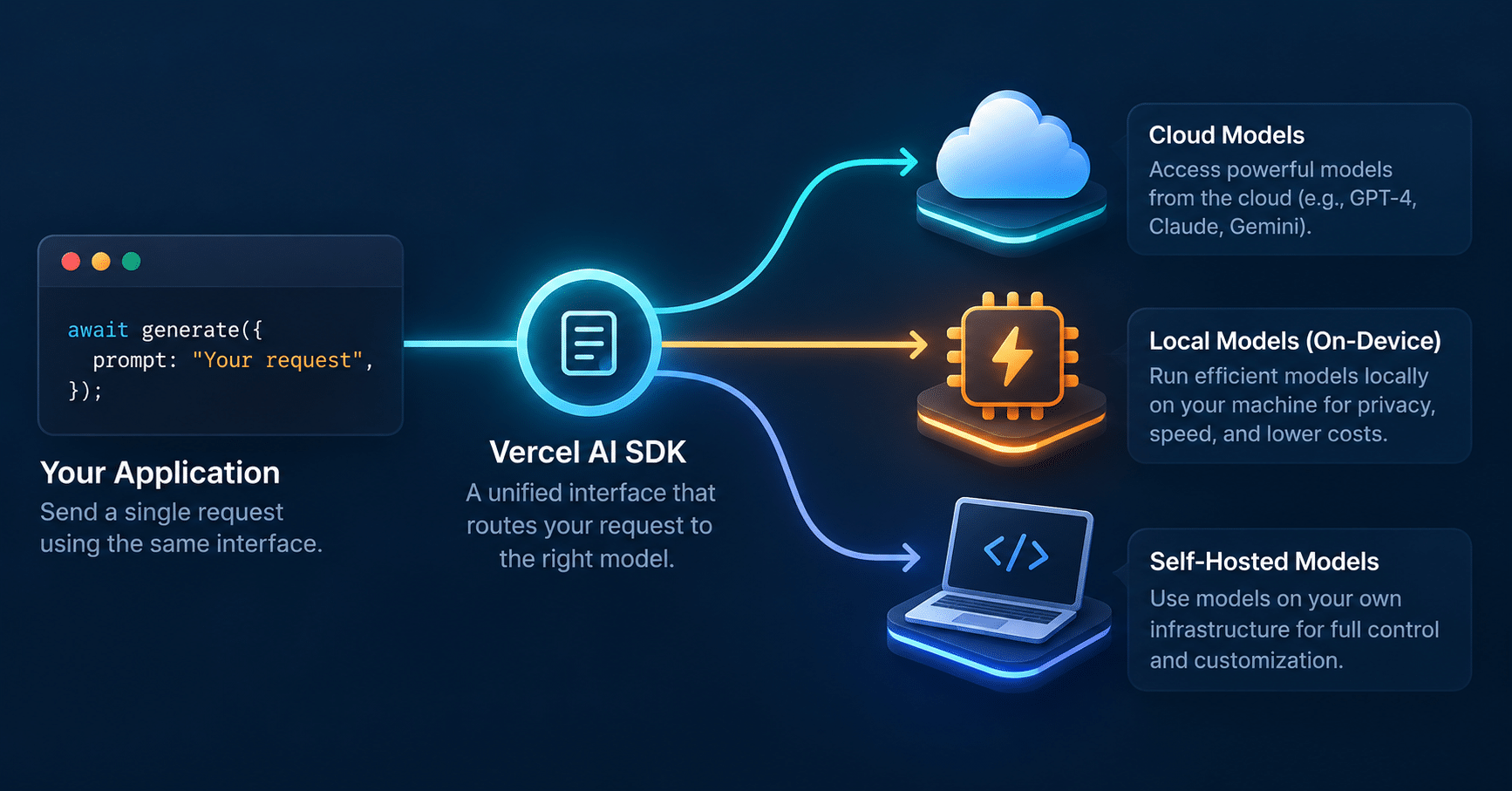

The Vercel AI SDK lets you build and test AI features without paying for every experiment. That matters, because the biggest hurdle when learning AI integration isn’t the code. It’s the cost.
In Part 1 of this series, we laid down the prerequisites for modern full-stack AI development. Hitting premium APIs like OpenAI or Anthropic while you’re just learning how streaming works can drain your wallet fast.
The open-source ecosystem has a fix. In this post, you’ll run models locally for free, use generous cloud free tiers, and unify all of it behind one interface.
Also Read: The Full-Stack AI Developer Roadmap: From REST APIs to MCP Servers
Why Use the Vercel AI SDK? The Problem with Vendor Lock-in
Imagine you build an app tightly coupled to the OpenAI SDK. Six months later, a faster and cheaper open-source model drops. Or your company suddenly needs an on-premise setup for data privacy.
Now you have to refactor your backend to handle a different API structure, different streaming protocols, and different error handling. That’s a nightmare.
This is where abstraction pays off.
What the Vercel AI SDK Does for Full-Stack Developers
The Vercel AI SDK is a JavaScript and TypeScript library (the ai package plus @ai-sdk/* provider packages) that gives you one standard interface for many Large Language Models (LLMs). The Vercel AI SDK acts as a translation layer. You write your application code once, and the Vercel AI SDK converts it to the format OpenAI, Anthropic, Google, Groq, or a local model expects.
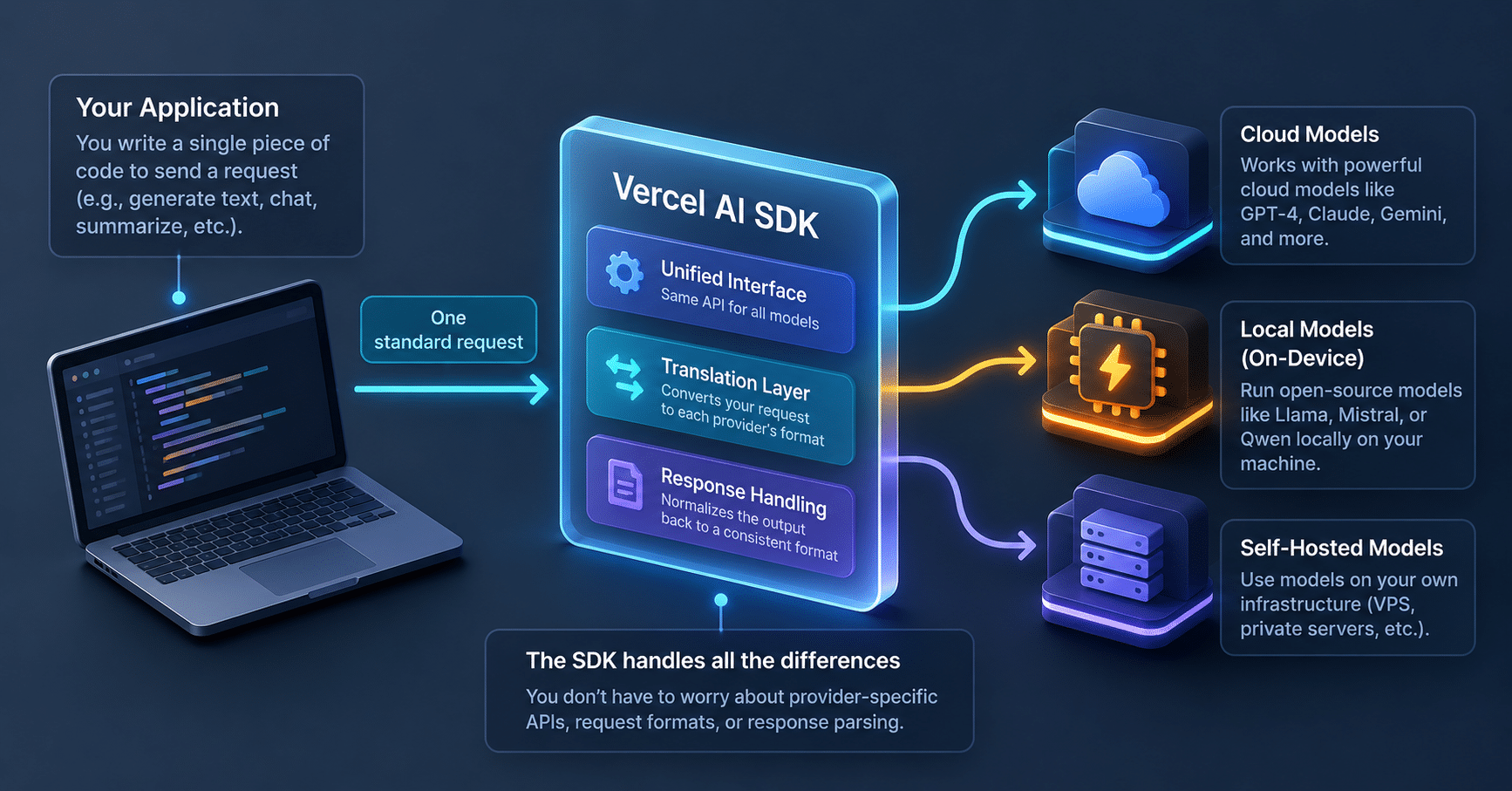
Here is why that matters for full-stack work:
- Less vendor lock-in: Switching from GPT-4o to Llama 3 is mostly a one-line change.
- Built-in streaming: The Vercel AI SDK hides the messy Node.js stream handling, so you can pipe text chunks straight to a React frontend.
- UI hooks: React hooks like
useChatanduseCompletionmanage loading, streaming, and error state for you.
Version note: This guide uses Vercel AI SDK 5 or newer. Older tutorials that use pipeDataStreamToResponse were written for version 4, and that method no longer works the same way. Check your installed version with npm ls ai before copying code.
Step 1: Set Up a Unified Backend With the Vercel AI SDK
Let’s build a basic Node.js backend with Express. First, install the core packages:
bash
npm install ai @ai-sdk/openai express cors
Our code uses ES module import syntax, so add "type": "module" to your package.json. We’re installing @ai-sdk/openai as an example provider. You can swap it for any supported one.
Here is an Express route that accepts a chat request and streams the reply back:
javascript
// server.js
import express from 'express';
import cors from 'cors';
import { streamText, convertToModelMessages } from 'ai';
import { openai } from '@ai-sdk/openai';

const app = express();
app.use(cors());
app.use(express.json());

app.post('/api/chat', async (req, res) => {
  const { messages } = req.body;

  try {
    // The Vercel AI SDK standardizes the call
    const result = streamText({
      model: openai('gpt-4o-mini'), // The specific model to use
      messages: await convertToModelMessages(messages), // Chat history from the UI
    });

    // Pipe the stream directly to the HTTP response
    result.pipeUIMessageStreamToResponse(res);
  } catch (error) {
    console.error('AI Error:', error);
    res.status(500).json({ error: 'Failed to process request' });
  }
});

app.listen(3001, () => console.log('Server running on port 3001'));
Set your OPENAI_API_KEY environment variable before running it. The convertToModelMessages helper turns the messages your React hook sends into the format the model expects.
Step 2: Switch to Free Cloud Models With Groq and OpenRouter
The code above uses OpenAI, but you can move to a free or cheaper provider without touching the core streamText logic. Two good options:
- Groq: Known for very fast inference on its own specialized hardware, and it usually offers a free tier for developers. Free tiers come with rate limits, so check the current limits on Groq’s site.
- OpenRouter: An aggregator that gives you hundreds of models, including some free open-weights ones like Llama, through a single API key.
To use Groq, install its provider:
bash
npm install @ai-sdk/groq
Then change only the provider and model lines:
javascript
// Remove this:
// import { openai } from '@ai-sdk/openai';

// Add this:
import { createGroq } from '@ai-sdk/groq';
const groq = createGroq({ apiKey: process.env.GROQ_API_KEY });

// ...and inside streamText:
// model: groq('llama-3.1-8b-instant'),
Model names change often, so pick a current one from Groq’s model list. Your streaming logic, frontend code, and error handling stay exactly the same.
Step 3: Run the Vercel AI SDK 100% Locally With Ollama
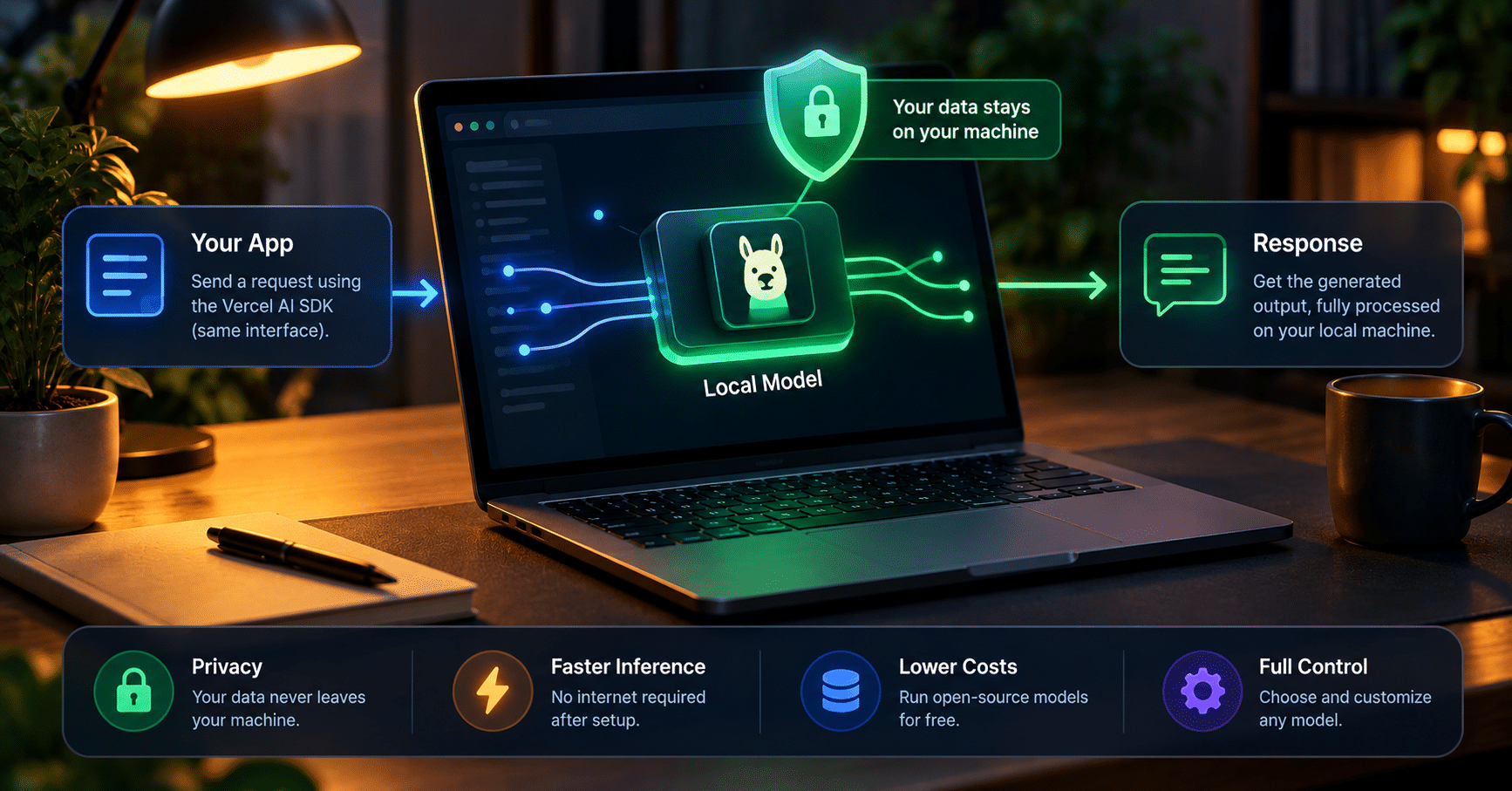
The best way to learn the Vercel AI SDK without limits is to run models on your own machine. That’s where Ollama comes in. It’s a lightweight tool that runs large language models locally, and it removes the Python environments and C++ builds you’d otherwise need.
Follow these steps:
- Install Ollama: Download it from ollama.com.
- Pull a model: Open your terminal and download a small model that suits most developer laptops:
bash
ollama pull llama3.2
- Check the server: Ollama downloads the weights (a few gigabytes) and serves models on
http://localhost:11434. You can test the model in your terminal withollama run llama3.2.
Connect Ollama to the Vercel AI SDK
Now let’s point our Node.js server at the local model. The community ollama-ai-provider-v2 package works with newer SDK versions (the older ollama-ai-provider targets version 4):
bash
npm install ollama-ai-provider-v2
Update server.js one last time:
javascript
import { streamText, convertToModelMessages } from 'ai';
import { createOllama } from 'ollama-ai-provider-v2';

// Connect to the local Ollama instance
const ollama = createOllama({ baseURL: 'http://localhost:11434/api' });

app.post('/api/chat', async (req, res) => {
  const { messages } = req.body;

  const result = streamText({
    model: ollama('llama3.2'), // The local model we pulled
    messages: await convertToModelMessages(messages),
  });

  result.pipeUIMessageStreamToResponse(res);
});
You now have a working AI backend running on your own machine, at zero API cost, with your data never leaving your computer.
Which Provider Should You Use?
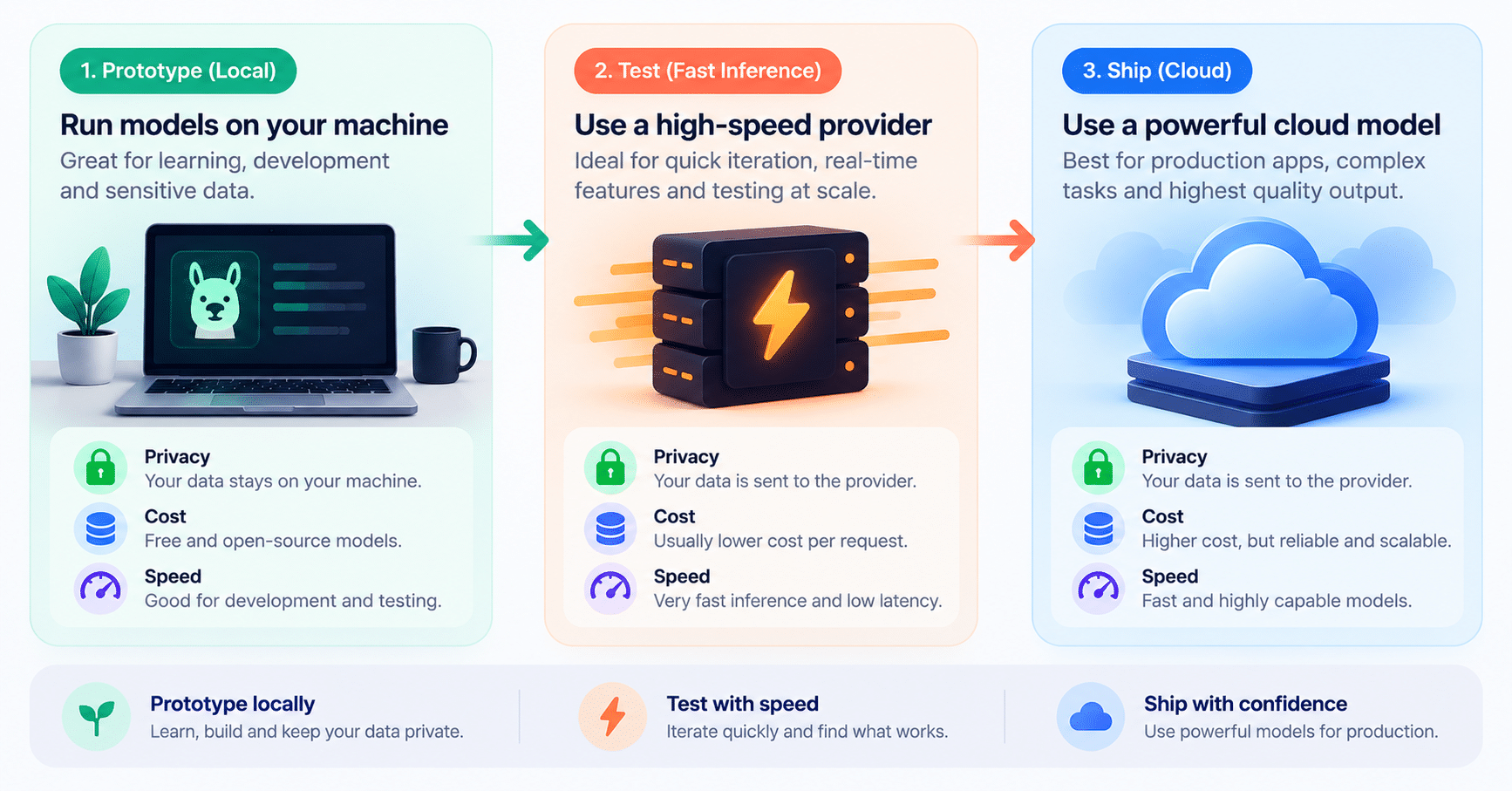
Each option fits a different stage of your project. Here’s a quick comparison:
| Provider | Cost | Speed | Privacy | Best For |
|---|---|---|---|---|
| OpenAI | Paid per token | Depends on model and network | Data goes to a third party | Production apps |
| Groq | Free tier with limits, paid above | Fast, cloud-based | Data goes to a third party | Prototyping and speed tests |
| Ollama | Free (uses your hardware) | Depends on your PC | Data stays local | Learning and private projects |
Common Problems and Fixes
A few errors trip up almost everyone the first time:
Cannot use import statement outside a module: Add"type": "module"topackage.json.ECONNREFUSEDon port 11434: Ollama isn’t running. Start the app or runollama serve.model not found: You haven’t pulled it yet. Runollama pullwith the exact model name.- Frontend shows garbled text: Your server and frontend are on different SDK versions. Upgrade both to the same major version.
FAQ
Is the Vercel AI SDK free to use?
Yes, the Vercel AI SDK itself is open source. You only pay for the model provider you connect, and Ollama is free apart from your own hardware and electricity.
Do I need Vercel hosting to use the Vercel AI SDK?
No. It runs on any Node.js server, including the Express setup in this guide.
Can I use the Vercel AI SDK without React?
Yes. streamText works in plain Node.js. The React hooks are optional and only help on the frontend.
Will switching providers break my app?
Usually the model line is the only change. Provider-specific options, like custom headers or safety settings, may need small edits.
Which Ollama model should I start with on a laptop?
Start with a small model in the 3B to 8B parameter range. Larger models need much more RAM and run slowly on most laptops.
Conclusion
The Vercel AI SDK lets you build resilient apps. Prototype with free local models through Ollama, test speed with a provider like Groq, and deploy with a premium model, all without rewriting your core logic.
Right now, though, our AI can only talk. It can’t query your database, fetch live data, or run functions. In Part 3, we’ll fix that with the Model Context Protocol (MCP) and turn our Node.js backend into a server your AI can use to reach external tools safely. Start by running Step 3 on your own machine, then come back for Part 3.