

A web application is just as interactive as its event handling in React capabilities. It could be pressing a button to fill out a form, typing in a form input, or hovering over something to receive some extra information about it. All these events have to be captured.
It seems like event handling in React is not different from normal HTML and JavaScript in terms of event handling. However, there are several peculiarities of doing that in React that will be discussed below.
Also Read:-A Guide to Understanding States and Props in ReactJS: Unlocking the Power of Component Management
Event Handling in React vs. HTML
If you come from vanilla JavaScript, React’s event syntax will look familiar but there are three major architectural differences you need to know:
- CamelCase naming – instead of lowercase HTML event names (
onclick,onchange), React uses camelCase (onClick,onChange) - Passed as functions – instead of passing a string as the handler in HTML, you pass the actual function reference inside curly braces
{} - Preventing default behavior – in HTML,
return falseprevents default behavior; in React, you must explicitly calle.preventDefault()
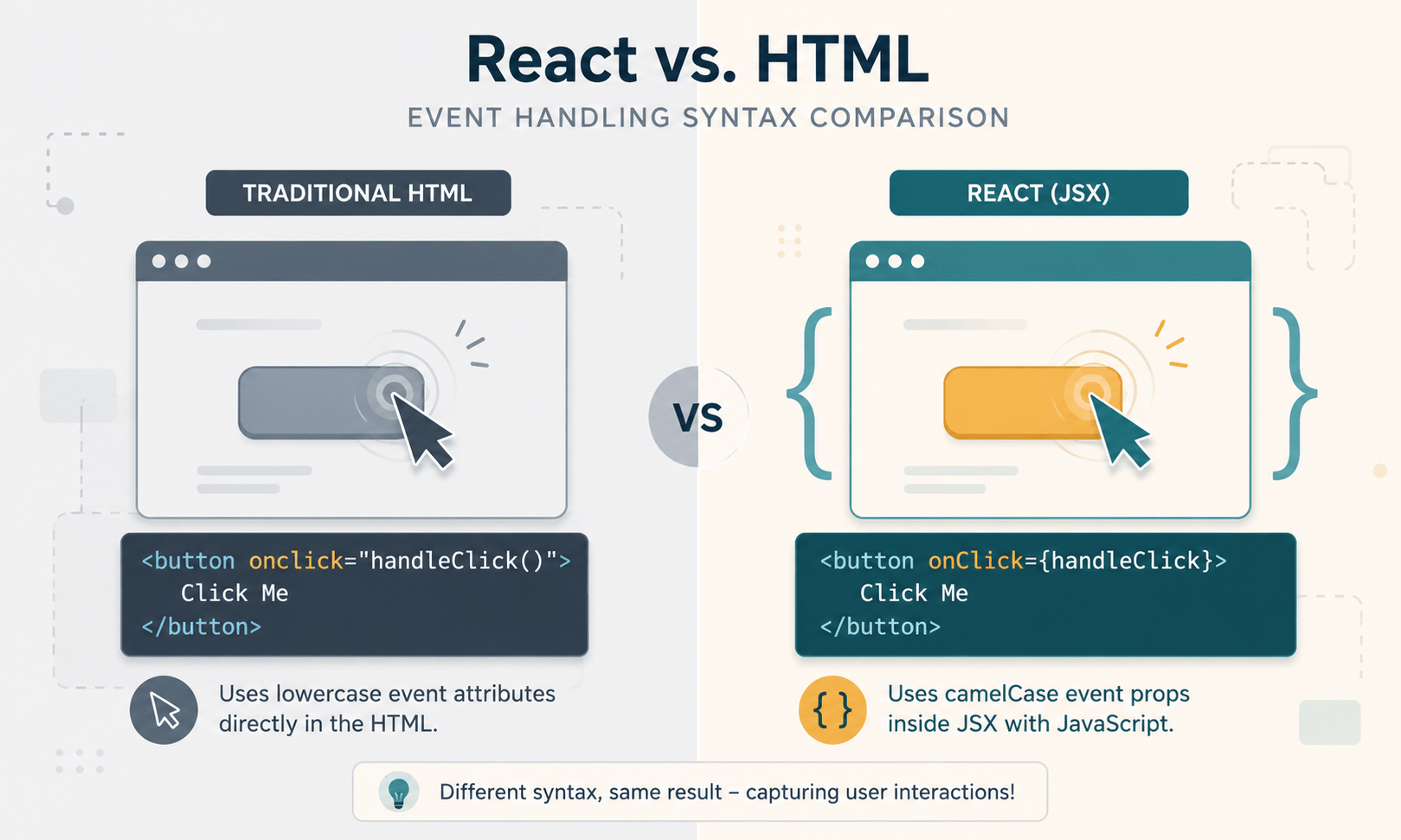
| Feature | Vanilla HTML / JS | React |
|---|---|---|
| Syntax |
<button onclick="activate()">
|
<button onClick={activate}>
|
| Default action |
<a href="#" onclick="return false">
|
Requires e.preventDefault() inside the handler.
|
Also Read:- conditional rendering in react
Basic Event Handling Example
Here’s a simple functional component with a button click handler:
js
import React from 'react';

function ClickCounter() {
  // 1. Define the event handler function
  const handleClick = () => {
    alert('Button was clicked!');
  };

  return (
    <div>
      {/* 2. Attach the handler to the onClick attribute */}
      <button onClick={handleClick}>Click Me</button>
    </div>
  );
}

export default ClickCounter;
Note: Look closely at onClick={handleClick}. Don’t add parentheses like onClick={handleClick()} that executes the function immediately when the component renders, rather than waiting for the user to click.
Also Read:- react state management guide
The SyntheticEvent Object
When an event fires, React passes an event object to your handler function. This isn’t a native browser event it’s a SyntheticEvent.
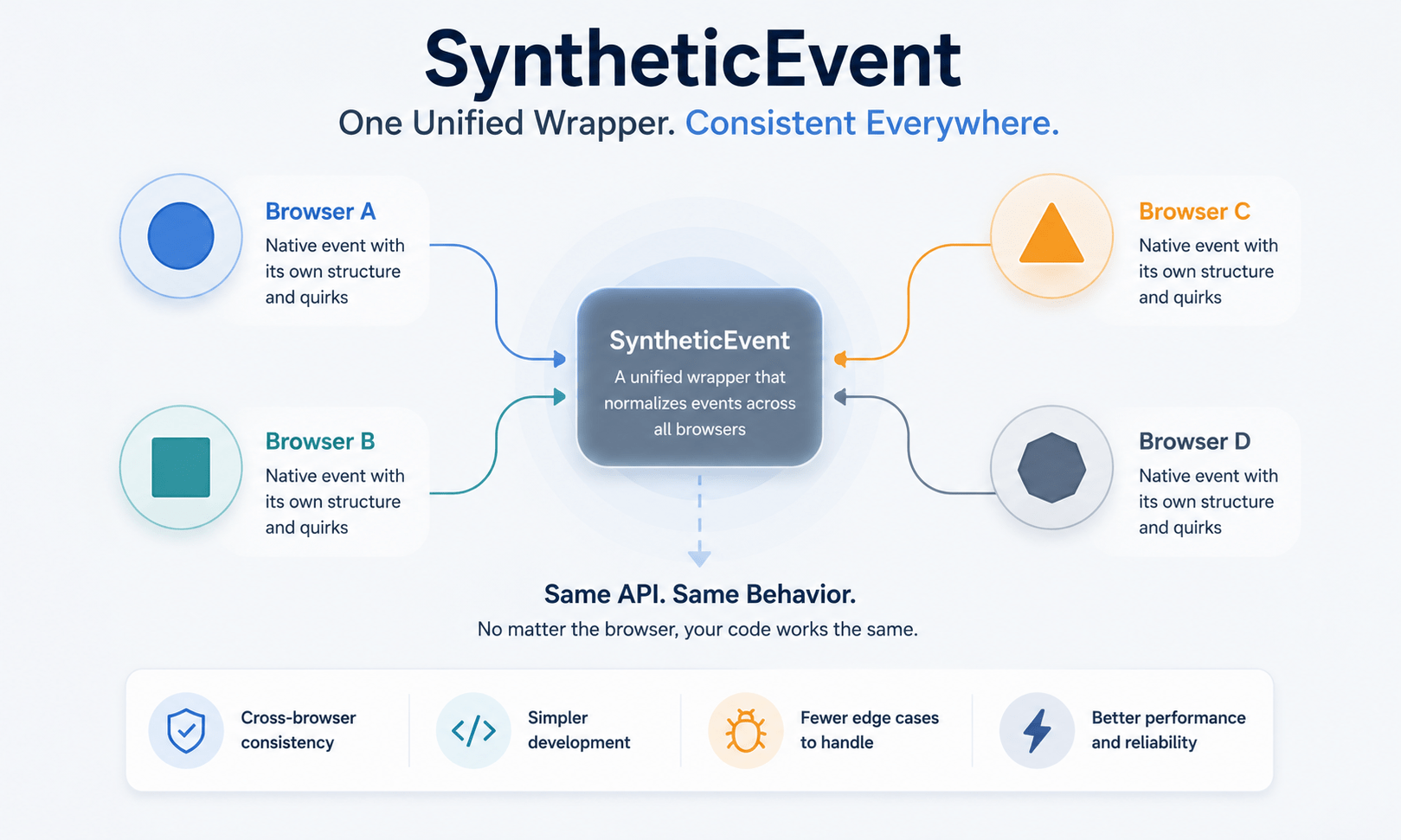
React wraps the browser’s native event in a SyntheticEvent wrapper to guarantee cross-browser compatibility. It exposes the same interface you already know e.target, e.type, e.stopPropagation() and behaves identically across Chrome, Safari, Firefox, and Edge automatically.
Example: Capturing User Input
Here’s how to use the event object (e) to capture text as a user types into a form input:
js
import React, { useState } from 'react';

function FormInput() {
  const [text, setText] = useState("");

  const handleInputChange = (e) => {
    // e.target.value extracts the current text from the input element
    setText(e.target.value);
  };

  return (
    <div style={{ padding: '20px' }}>
      <input
        type="text"
        value={text}
        onChange={handleInputChange}
        placeholder="Type something..."
      />
      <p><strong>Live Typing Preview:</strong> {text}</p>
    </div>
  );
}

export default FormInput;
Passing Arguments to Event Handlers
Sometimes you need to pass extra data to your handler for example, an ID when clicking a specific item in a list. You can do this by wrapping the handler call inside an inline arrow function.
Example: Passing an ID
js
import React from 'react';

function UserList() {
  const deleteUser = (userId, name) => {
    alert(`Deleting user: ${name} (ID: ${userId})`);
  };

  return (
    <ul>
      <li>
        John Doe
        <button onClick={() => deleteUser(101, 'John Doe')}>Delete</button>
      </li>
      <li>
        Jane Smith
        <button onClick={() => deleteUser(102, 'Jane Smith')}>Delete</button>
      </li>
    </ul>
  );
}

export default UserList;
onClick={() => deleteUser(101, 'John Doe')} passes a new function that runs deleteUser with the correct arguments only when the interaction actually occurs.
Best Practices for Event Handling in React
- Keep inline logic minimal. Inline arrow functions are okay when passing basic variables, but refrain from using complex business logic in the JSX block itself. Extract it into a descriptive function before the return statement instead.
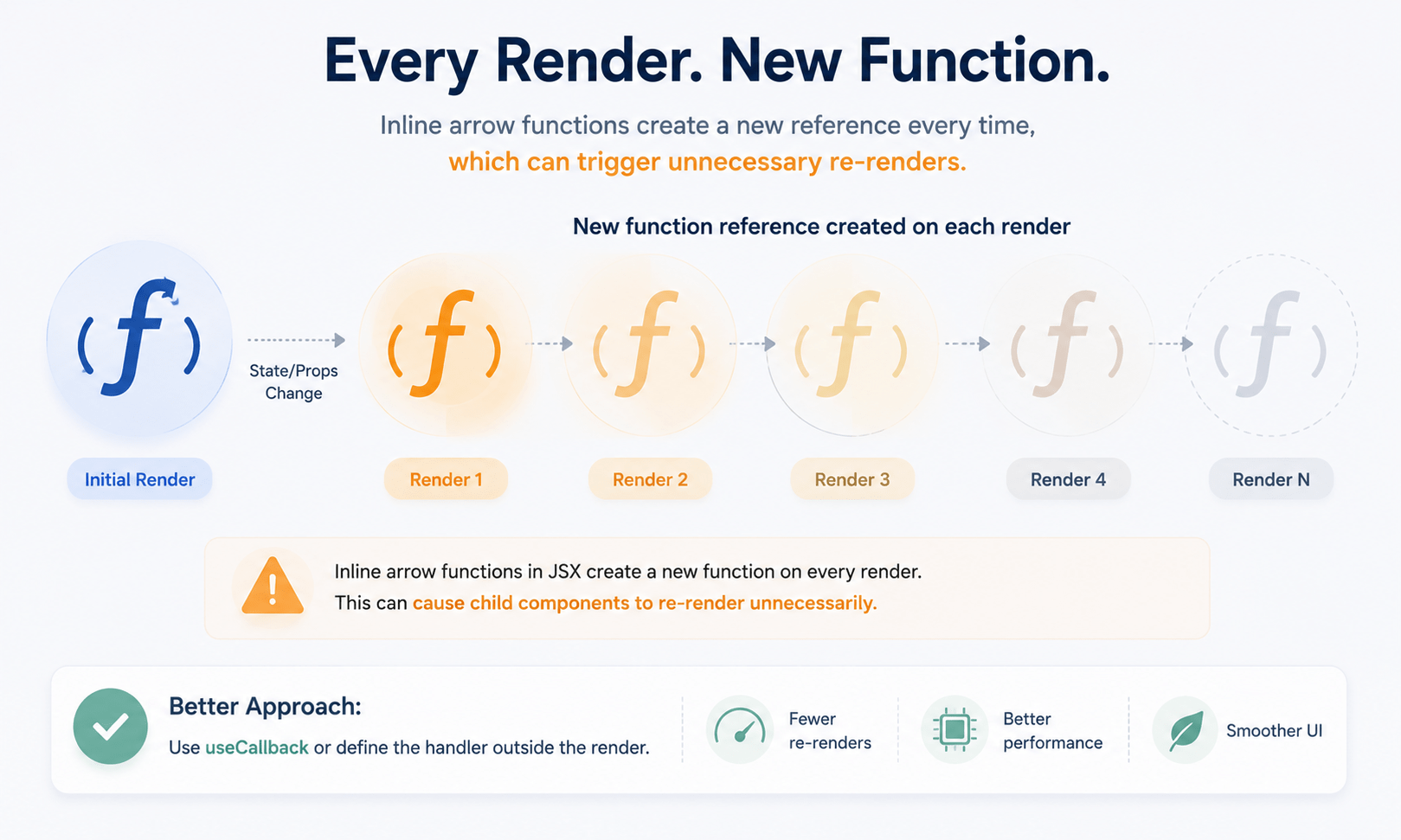
- Be mindful of re-renders. When using inline functions in JSX, a new function is created each time it renders. This isn’t often an issue for smaller projects, but when used in child components, which have been optimized, it causes unnecessary renders. When this starts affecting performance, you may need to use the useCallback hook.
Frequently Asked Questions
Why does React use camelCase for event handling instead of lowercase like HTML?
React treats event handlers as JavaScript properties on the JSX element, not as HTML attributes, so it follows standard JavaScript naming conventions like camelCase (onClick, onChange) rather than the lowercase convention HTML uses.
What is a SyntheticEvent in React, and why does it exist?
A SyntheticEvent is React’s cross-browser wrapper around the native browser event. Event handling in React relies on it to guarantee that properties like e.target and methods like e.stopPropagation() behave identically across Chrome, Safari, Firefox, and Edge, without you needing to write browser-specific code.
Why shouldn’t I add parentheses when passing a function to onClick?
Writing onClick={handleClick()} calls the function immediately during render, not when the user clicks. Writing onClick={handleClick} passes the function reference itself, which React only invokes when the actual click event fires.
Is it bad practice to use inline arrow functions in event handlers?
Not inherently. For simple cases like passing an ID, inline arrow functions are fine and common. The concern is performance: they create a new function reference on every render, which can cause unnecessary re-renders in child components wrapped in React.memo. In those cases, useCallback helps.
How do I stop a form from refreshing the page in React?
Call e.preventDefault() inside your submit handler. Unlike HTML, where return false can prevent default behavior, event handling in React requires you to call this method explicitly on the event object.
Conclusion
React event handling fills the gap between passive display and complete user interaction. All you have to do is learn how to bind camelCase events, extract event values from the SyntheticEvent API, and pass arguments using arrow functions, and you’re ready to go for some true interactivity.
In our next article, we will discuss Conditional Rendering – ways to control how your UI is rendered based on component state.
Also Read:- understanding react components class vs functional